Why vCard QR Codes Beat Traditional Business Cards
The traditional business card flow:
- Hand over card
- Recipient puts in pocket
- Card gets lost/thrown away
- Contact info never saved
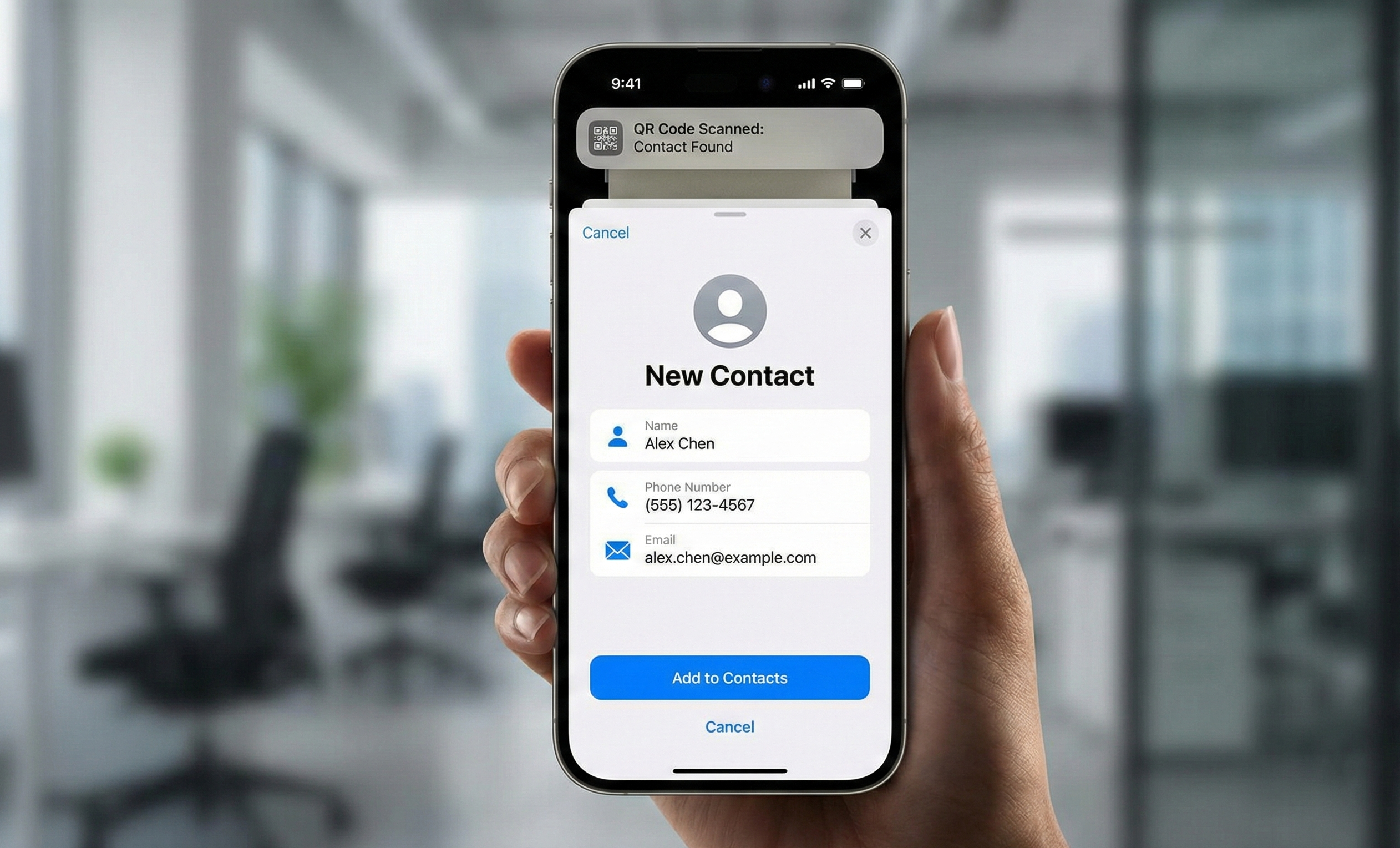
The vCard QR flow:
- Contact scans QR code
- All your info auto-populates in their phone
- They tap "Save Contact"
- You're in their phone forever
The numbers don't lie:
- 88% of business cards are thrown away within a week
- Digital contacts are searched 10x more than physical cards
- vCard QR codes have 40%+ save rate vs 5% for traditional cards
What is a vCard?
vCard (Virtual Contact File) is a standard format for contact information. When scanned, your phone recognizes it and offers to save the contact.
A vCard can include:
- Full name
- Job title
- Company
- Multiple phone numbers
- Multiple emails
- Website
- Physical address
- Birthday
- Photo (not recommended in QR)
- Notes
Creating the Perfect vCard QR Code
Essential Fields
- First name and last name
- Primary phone number
- Primary email
- Company name
Recommended Fields
- Job title
- Website
- LinkedIn URL (in website field)
Optional Fields
- Secondary phone
- Physical address
- Additional emails
Fields to Skip
- Photo (makes QR code too complex)
- Birthday (usually not relevant)
- Long notes
Design Best Practices
Placement on Business Cards
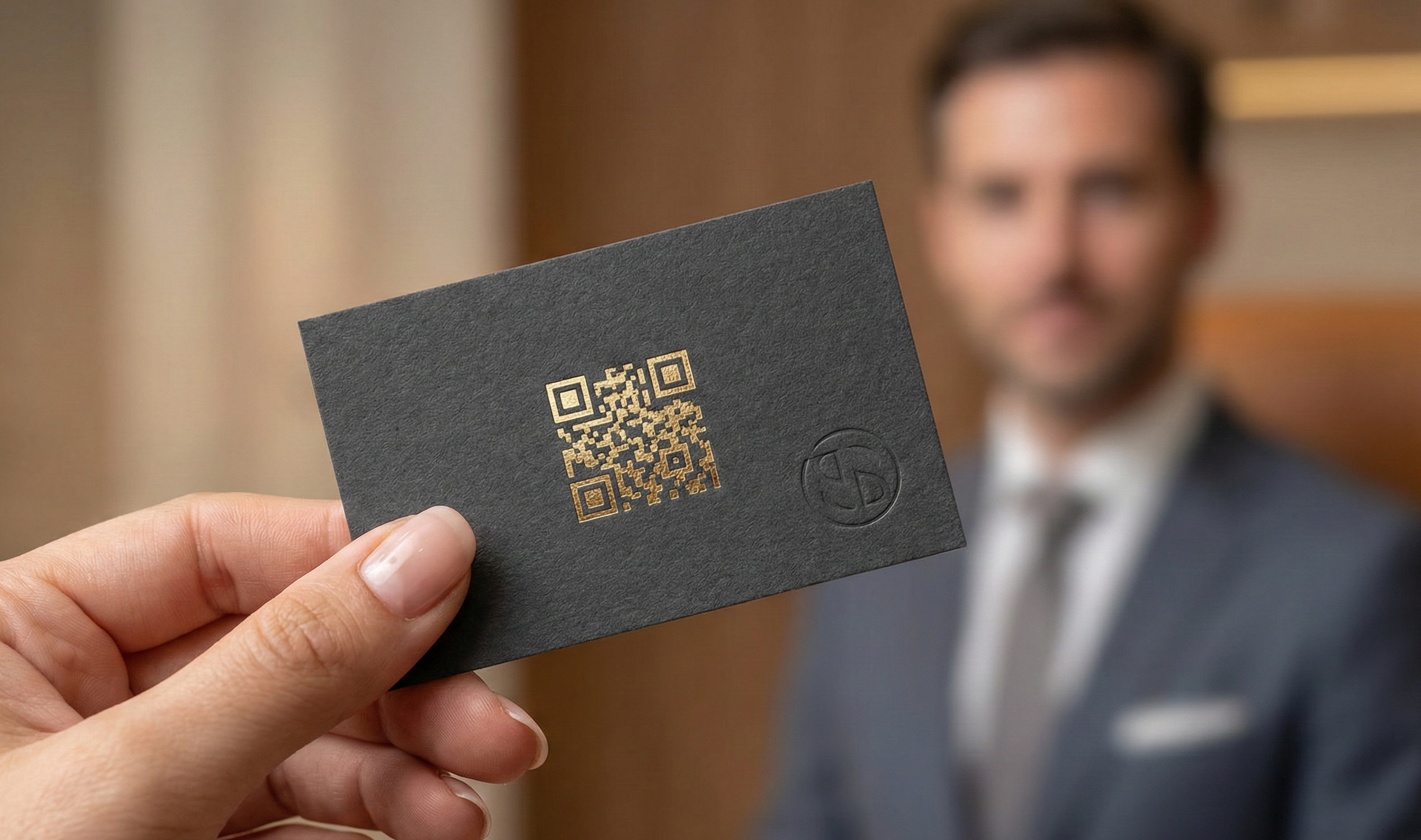
Back of card (recommended):
- Full back dedicated to QR code
- Clean, scannable
- Doesn't clutter front design
- Size: 1 inch minimum
Front of card:
- Must compete with other design elements
- Often ends up too small
- Can look cluttered
- Only if design demands it
Size and Margins
- Minimum QR size: 0.8 x 0.8 inches (20mm)
- Recommended: 1 x 1 inch (25mm)
- Quiet zone: At least 0.1 inch margin around code
- Error correction: Level H (handles wallet wear)
Color Considerations
- Best: Black code on white background
- Okay: Dark brand color on light background
- Avoid: Light on dark, low contrast colors
- Test: Always scan before printing
Adding a CTA
Include text near the QR code:
- "Scan to save my contact"
- "Add me to your contacts"
- "Scan for full contact info"
Card Design Integration
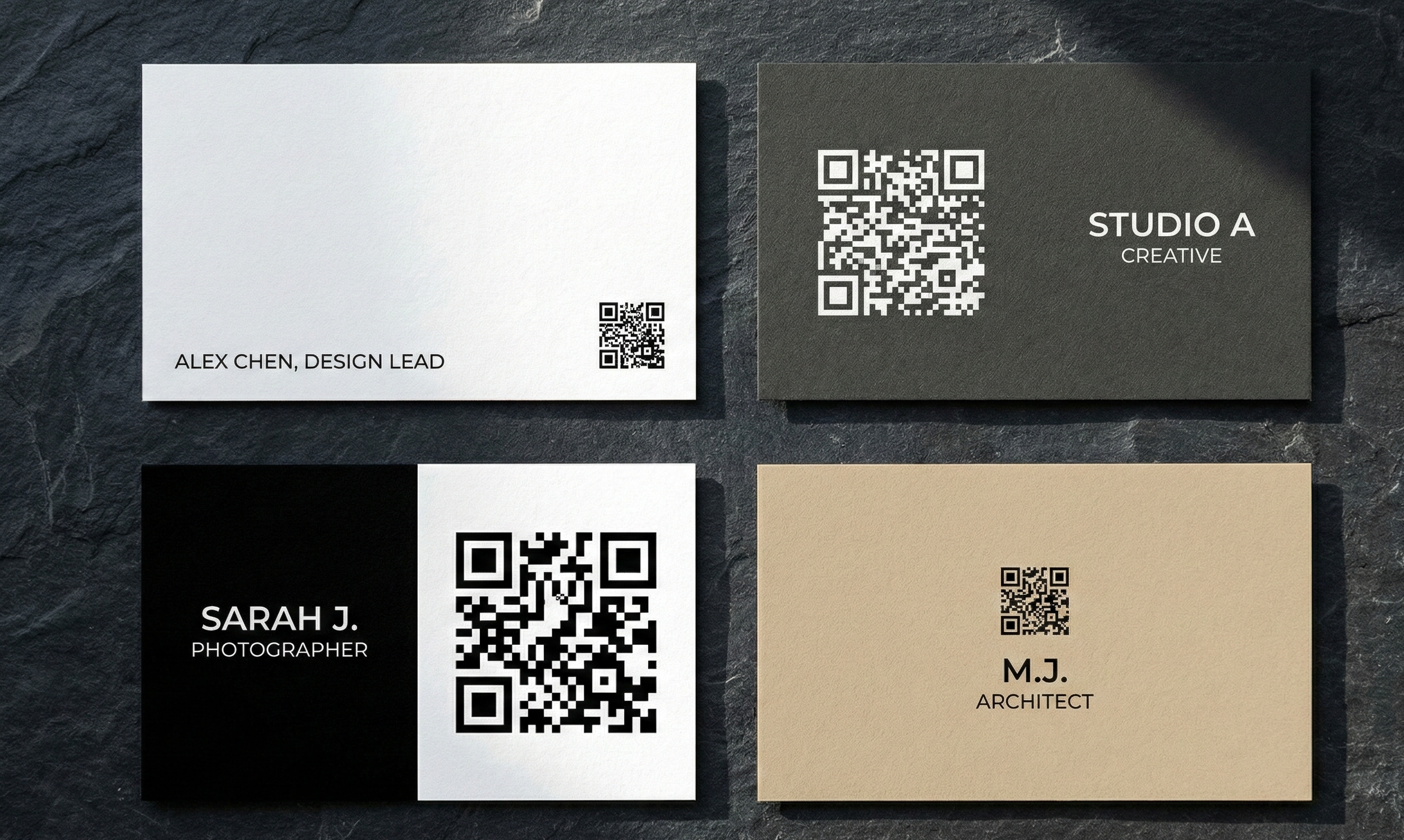
Option 1: QR-Focused Back
[Front: Traditional design - name, title, contact]
[Back: Large centered QR code + "Scan to save"]
Option 2: Split Back
[Front: Traditional design]
[Back: 50% QR code | 50% social links or tagline]
Option 3: Minimal Front Integration
[Front: Name/title | QR in corner | Contact on back]
[Back: Full contact info + social]
Common vCard Mistakes
Mistake 1: Too Much Data
Problem: Including every field makes a dense, hard-to-scan QR code. Solution: Stick to essentials. They can find your LinkedIn from your website.
Mistake 2: Wrong Phone Format
Problem: Phone numbers with formatting may not dial correctly. Solution: Use international format: +1-555-123-4567
Mistake 3: Inconsistent Name Format
Problem: "Bob" on card, "Robert" in vCard creates confusion. Solution: Match the vCard to how you introduce yourself.
Mistake 4: QR Code Too Small
Problem: Business cards get bent, worn, and viewed in poor lighting. Solution: Minimum 0.8 inches. Bigger is better.
Mistake 5: No Error Correction
Problem: Wallet wear damages QR codes. Solution: Always use Level H error correction.
Mistake 6: Not Testing
Problem: Typos in email or phone = lost leads. Solution: Scan and verify EVERY field before printing.
Printing Specifications
Paper Recommendations
- Weight: 350gsm or higher
- Finish: Matte or soft-touch (reduces glare)
- Avoid: Glossy finishes that cause scanning glare
Print Quality
- Resolution: 300 DPI minimum
- Format: Vector (SVG) preferred, high-res PNG acceptable
- Bleed: Include 0.125" bleed if QR is near edge
Quantity Tips
- First order: 250-500 (test the design)
- Reorder: 500-1000 once you're happy
- Update frequency: Reprint when contact info changes
Making the Most of vCard QR
Include a Follow-Up Prompt
When someone saves your contact, what next? Consider:
- "Just saved my contact? Connect with me on LinkedIn!"
- "Questions? Text me anytime."
- "Check out my portfolio at [website]"
Track Engagement
You can't track vCard scans directly (it's offline), but you can:
- Use a unique website URL in the vCard
- Monitor LinkedIn connection requests after events
- Ask "Did you scan my card?" in follow-ups
Event-Specific Cards
For conferences or specific events:
- Add event name to title temporarily
- Include event-specific offer
- Different website landing page per event
Alternative: Combined Approach
Modern professionals often use both:
Physical card:
- Front: Name, title, company, key contact
- Back: vCard QR code + "Save my contact"
Digital sharing:
- iPhone: Share via NameDrop/AirDrop
- All phones: Show QR code on phone screen
- LinkedIn QR code as backup
Quick Setup Checklist
- ☐ Essential info entered correctly
- ☐ Phone in international format
- ☐ Email verified (no typos!)
- ☐ Website URL works
- ☐ QR code scanned and tested
- ☐ Contact saved successfully on iPhone
- ☐ Contact saved successfully on Android
- ☐ Design finalized with proper sizing
- ☐ Test print checked before full run