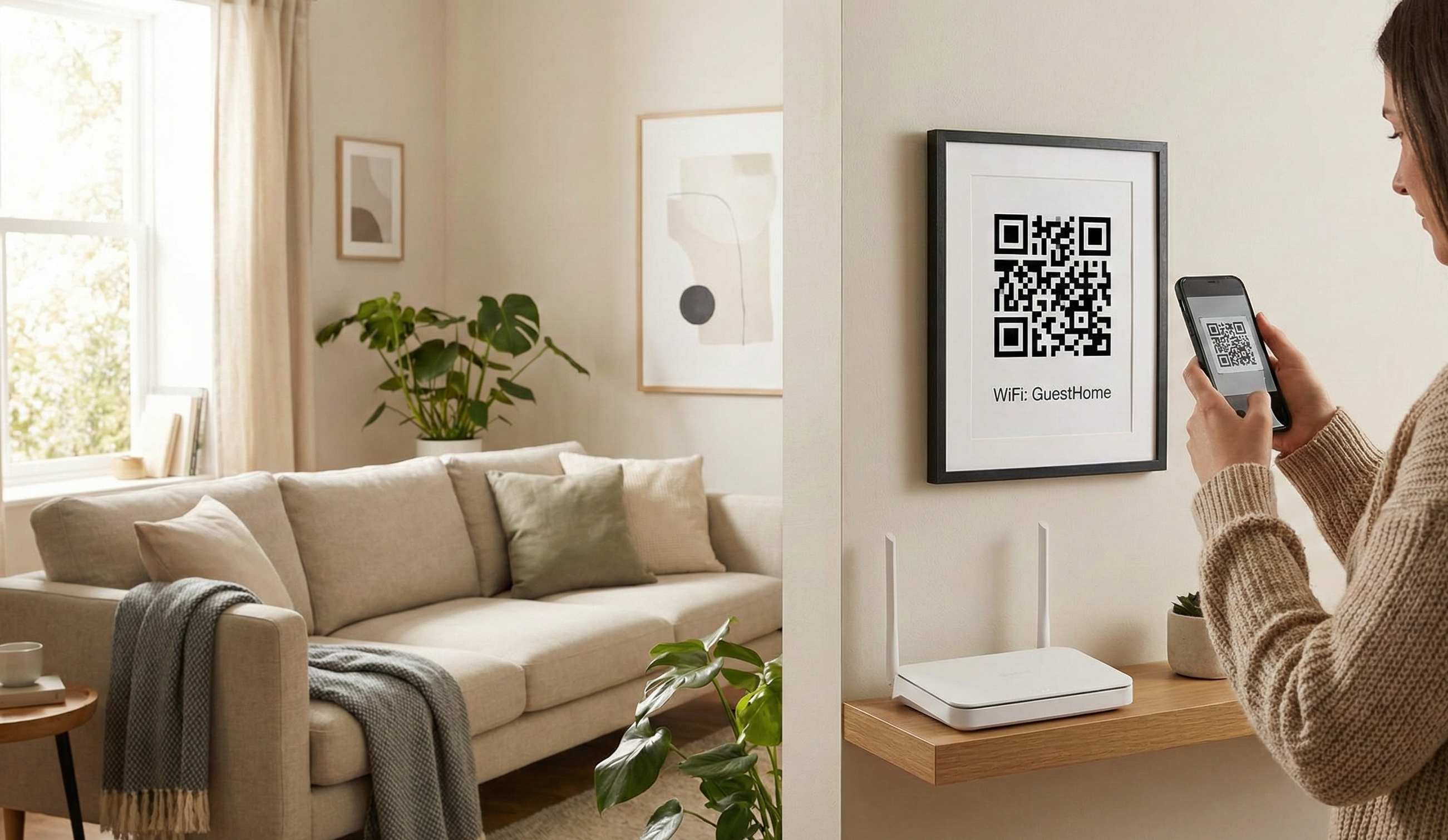
Why WiFi QR Codes Are Brilliant
Instead of this awkward exchange:
"What's your WiFi password?" "It's capital B, lowercase r, zero, dollar sign, underscore..." "Wait, was that a zero or the letter O?"
You get this:
Guest scans code Connected
WiFi QR codes eliminate the #1 friction point of guest connectivity.
How WiFi QR Codes Work
When scanned, a WiFi QR code tells the phone:
- Network name (SSID)
- Password
- Security type (WPA/WPA2/WEP)
- Whether network is hidden
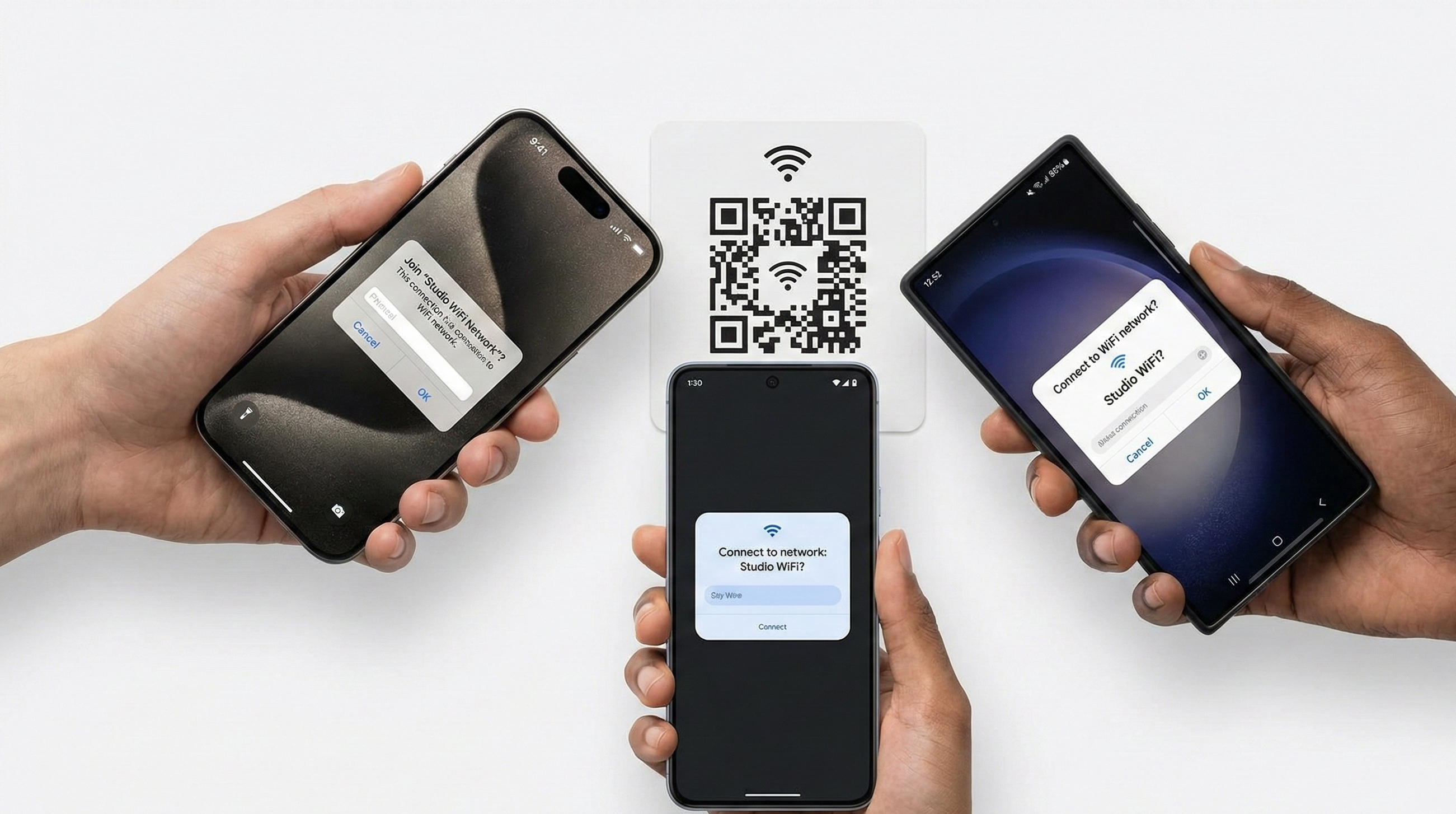
The phone then auto-fills the connection dialog. On most devices, one tap connects.
Important: WiFi QR codes are static—they encode the credentials directly. No internet needed to scan.
Creating Your WiFi QR Code
What You Need
- Network name (SSID) - exactly as it appears
- Password - case-sensitive
- Security type - usually WPA/WPA2
Step-by-Step Process
Step 1: Find your network details
- Router admin panel (usually 192.168.1.1)
- Or check your router's label
- Or ask your IT department
Step 2: Open our QR generator and select "WiFi"
Step 3: Enter credentials exactly:
- Network name: "MyWiFi" (not "mywifi" if case matters)
- Password: exactly as set
- Security: WPA/WPA2 for modern networks
Step 4: Generate and test
- Scan with your own phone first
- Verify it connects correctly
- Test on both iPhone and Android
Step 5: Download and print
- Use SVG for best print quality
- Size: at least 1 inch square
WiFi QR Code Best Practices
Security Considerations
Do:
- Use for guest networks, not your main network
- Change guest passwords periodically
- Reprint codes when passwords change
- Use WPA2 or WPA3 security
Don't:
- Share your primary network password this way
- Post in publicly visible areas (unless it's a public network)
- Forget to update codes when passwords change
Design Tips
For Home:
- Print on a small card or sticker
- Place near the router
- Include "Scan for WiFi" text
- Frame it nicely for guest rooms
For Offices:
- Laminate for durability
- Post in conference rooms
- Include in welcome packets
- Separate guest network recommended
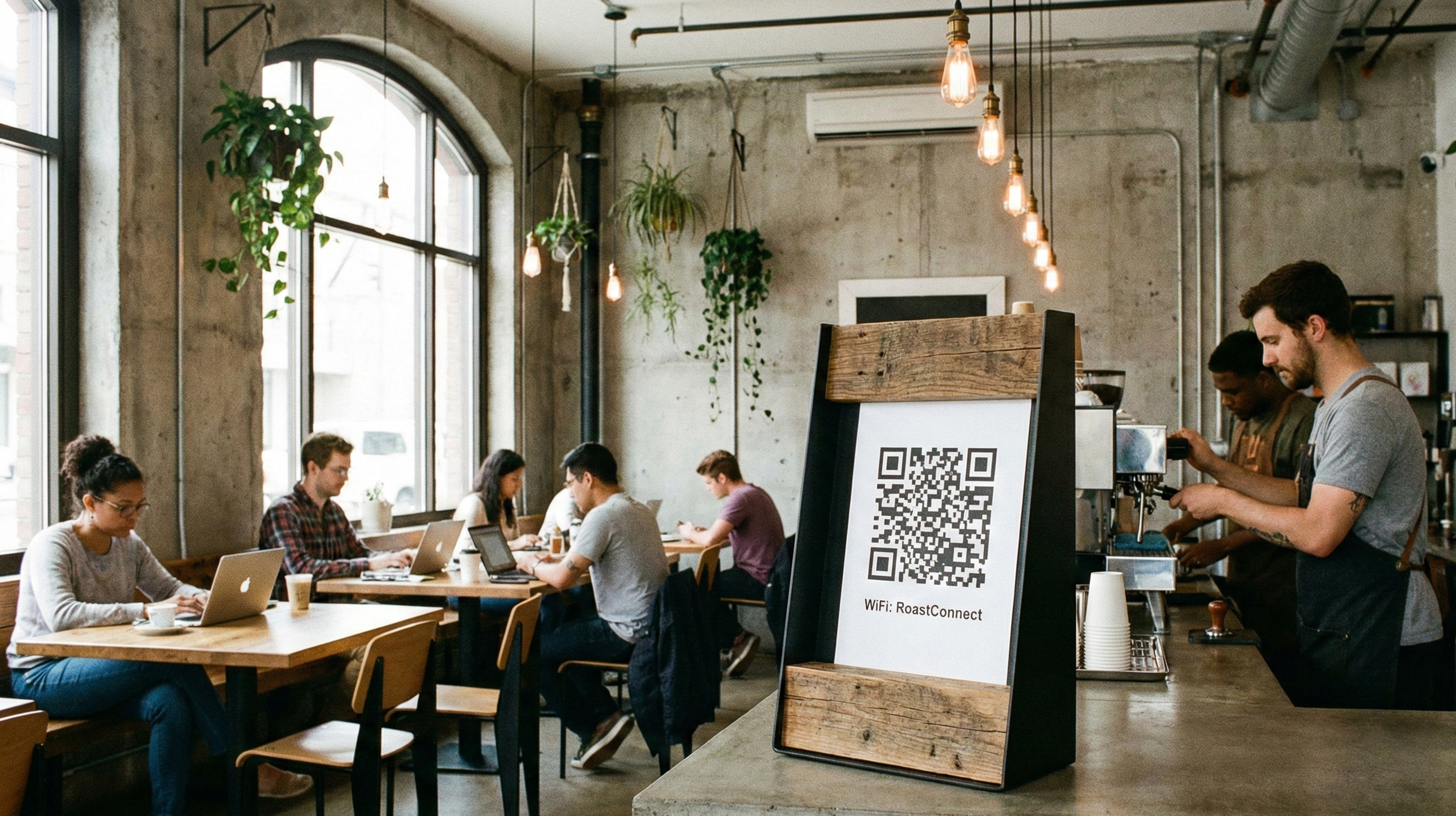
For Restaurants/Cafes:
- Include on table tents (combine with menu QR)
- Post near entrance
- Add to receipts
- Make it clearly visible
For Events:
- Print on badges or programs
- Display on signage
- Include in event app
- Announce location of codes
Platform Compatibility
iPhone (iOS 11+)
- Native camera app reads WiFi QR codes
- Shows "Join Network" notification
- One tap to connect
- Stores password in keychain
Android (Android 10+)
- Built-in camera support varies by manufacturer
- Google Lens always works
- May require Google Lens app on older phones
- Most modern phones work natively
Older Devices
- May need QR scanner app
- Some very old phones don't support WiFi QR
- Having password written as backup is wise
Common Issues and Fixes
"Code won't scan"
- Check size: Minimum 1 inch square
- Check contrast: Black on white works best
- Check error correction: Use Level H
- Clean the code: Remove smudges
"Scans but won't connect"
- Password exact? Case, spaces, special characters
- Security type correct? WPA vs WPA2 vs WEP
- Network in range? Phone needs to see the network
- Hidden network? Mark as hidden in generator
"Works on iPhone but not Android"
- Network name encoding: Avoid special characters in SSID
- Try different scanner app: Google Lens is most reliable
- Update phone: Older Android versions have issues
"Works sometimes"
- Low signal? QR can't fix weak WiFi
- Network full? Some routers limit connections
- Interference? Try different channel on router
Pro Tips
Create a Guest Network
Most routers support multiple networks. Create a separate guest network:
- Isolates guests from your main devices
- Can limit bandwidth
- Easier to change password
- No access to network shares
Combine with Menu QR
For restaurants, create a single table tent with:
- WiFi QR code
- Menu QR code
- Review QR code
Frame It Nicely
For AirBnB and vacation rentals:
- Put WiFi QR in a nice frame
- Include network name and password text (backup)
- Add house rules or welcome info
- Place in prominent location
Update Reminder
Set a calendar reminder to update WiFi QR codes whenever you change passwords. Old codes with wrong passwords frustrate guests.
Quick Specs
| Setting | Recommendation |
|---|---|
| QR Size | 1.2+ inches |
| Error Correction | Level H |
| Security | WPA2 or WPA3 |
| Hidden Network | Only if necessary |
| Format | SVG for print |
Final Checklist
- ☐ Network credentials are exactly correct
- ☐ Tested on your own phone
- ☐ Tested on both iPhone and Android
- ☐ QR code is at least 1 inch
- ☐ Printed clearly with good contrast
- ☐ Placed in visible, accessible location
- ☐ Backup password available (for edge cases)